Welcome to RegLogic
The federal safety and transportation rules, searchable on any device. This tour covers reading and searching, running training classes, and setting up your company.
Every step in this tour
-
Welcome to RegLogic
The federal safety and transportation rules, searchable on any device. This tour covers reading and searching, running training classes, and setting up your company.
-
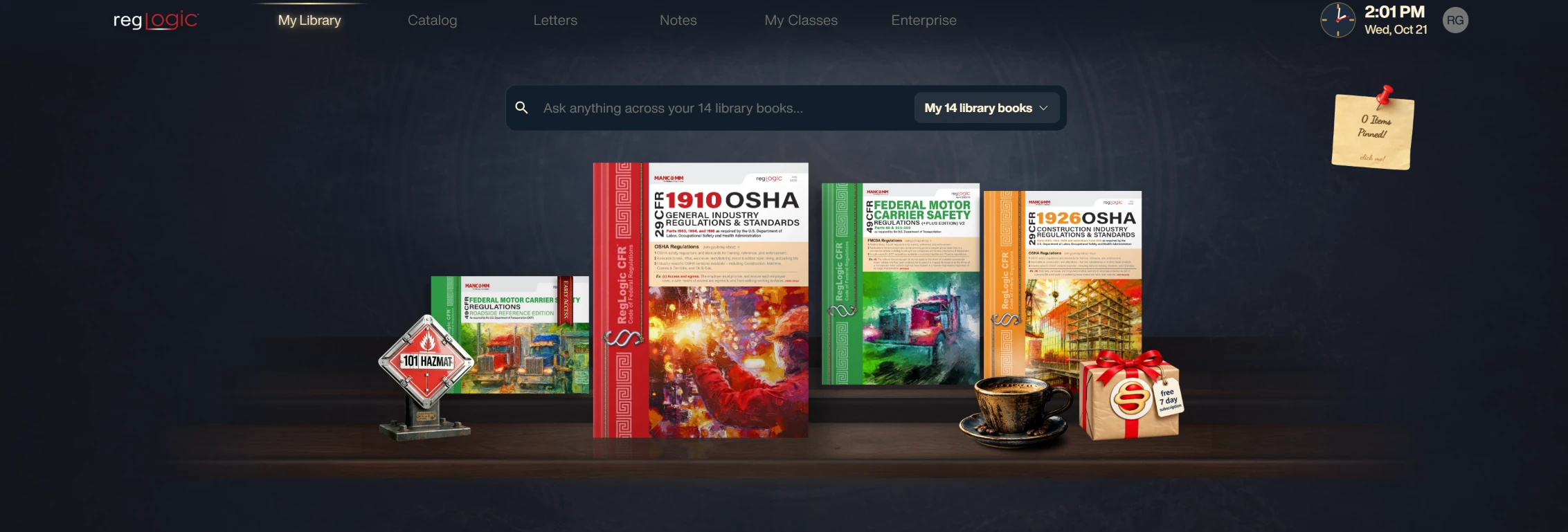
Your library
Every book you own sits on this shelf. Click a cover to open it.
-
Ask in plain English
Type a question the way you’d ask a coworker, or type a section number like 1926.501.
-
Search your books or everything
Here we searched 1926.501 across the full catalog. Switch this to your own books to keep results narrow.
-
Rules and the letters that explain them
Results come back in two tabs: 210 regulation matches, and 90 OSHA Letters of Interpretation about the same rule.
-
Jump straight to the rule
Each match shows the exact paragraph with your search highlighted, like 1926.501, Duty to have fall protection. Click it to open that spot.
-
Open the book
Click Open to start reading. View Details shows the edition and the last update first.
-
Your reading tools
Table of contents, search inside the book, highlighter, display settings and the HazMat 101 table, all one tap away.
-
Search inside the book
Search within the book you have open. Here, 1910 finds 64 matches, and each one jumps to its spot in the text.
-
Table of contents
Open the table of contents to move by part and subpart. Each line shows the section range it covers.
-
Several books open at once
Every book you open gets its own tab, like Pipeline Safety and 1910 here. Click a tab to switch without losing your place.
-
Letters of Interpretation, right on the rule
The agency letters that explain a section are listed right under it. Click any title to read the official answer.
-
The official answer, side by side
Letters of Interpretation open next to the rule they explain, so you see exactly what the agency said.
-
The short version
Long letters get a plain-English summary right in the text, so you get the point without reading ten pages.
-
Browse every letter
The Letters tab holds all 10,603 Letters of Interpretation from the federal agencies. Search them or page through, each tagged with the sections it covers.
-
Highlight what matters
Use the highlighter on any passage. Everything you mark collects in your Highlights list.
-
Your notes in one place
The Notes tab keeps every note you write, sorted by date. Filter by tag, share notes publicly, or check the review queue.
-
HazMat 101 lookup
Type a UN number or a shipping name, like neon, to pull up a hazardous material.
-
Everything on one card
Hazard class, ID number, label codes, packing group and quantity limits by plane, rail and vessel, each linked to the rule behind it.
-
The full 172.101 table
Open the Hazardous Materials Table in one scrolling view and search it, instead of flipping through pages of fine print.
-
Explore the catalog
Search across every title Mancomm publishes, including state plans and enforcement guides.
-
Add it or print it
Add a title to your library in one click, or order the printed book.
-
Start a class
Trainers go to My Classes and click New Class. Setup takes about a minute.
-
Set the dates
Name the class and pick the first and last day. Trainees keep access through the last day plus a grace period.
-
Pick your books
Check every book the class will use. Trainees get exactly these books, nothing else.
-
Trainees scan to join
Every class gets a QR code and a class code, here T6M-RGL-LPV. Trainees scan it with their phone camera and the class books open. No account to set up first.
-
Print the scan sheet
Print the sheet and post it at the door, or put it on your first slide. Late arrivals scan in on their own.
-
All your classes
My Classes lists every class with its dates and trainee count. Click Open to manage one.
-
Class content
Each class shows its books with an Open Book button. Use Upload PDF to add your own handouts and slides, and Show Scan Code to bring the QR code back up.
-
Add a trainee
Add trainees by name and email if they won’t be scanning in. They get an invite to join the class.
-
Set up your company
Enterprise starts with one question: what is the organization called? You can add regions and teams under it later.
-
Your company at a glance
The company page shows how many members you have and how many were active today.
-
Regions and teams
The org chart on the left lists every organization. Hierarchy view shows them all at a glance, and the + button adds a new one.
-
Bring people in
Add members one at a time, import a spreadsheet, or add a PDF everyone in the company can open.
-
Send an invite
Type a name and email and click Send invite. Use Add & another to keep going, or import a list instead.
-
Members and files
Members shows who has joined and whose invite is still pending. Files holds the company’s own documents.
-
Add your own documents
Drop in a safety plan, an employee manual or any PDF up to 50 MB. Everyone in the company can open it.
-
Name it and add it
Give the file the name members will see, then click Add file.
-
Ready for everyone
The file is live for the whole company. Open it, replace it with a new version, set a cover, or delete it.
-
See it live
That’s the tour. Go to the demo to see RegLogic with your own regulations. Core is $3.95 a month and Essentials is $9.95 a month.